Why DigiPort KYC Can Still Block Your MRX Presale Allocation
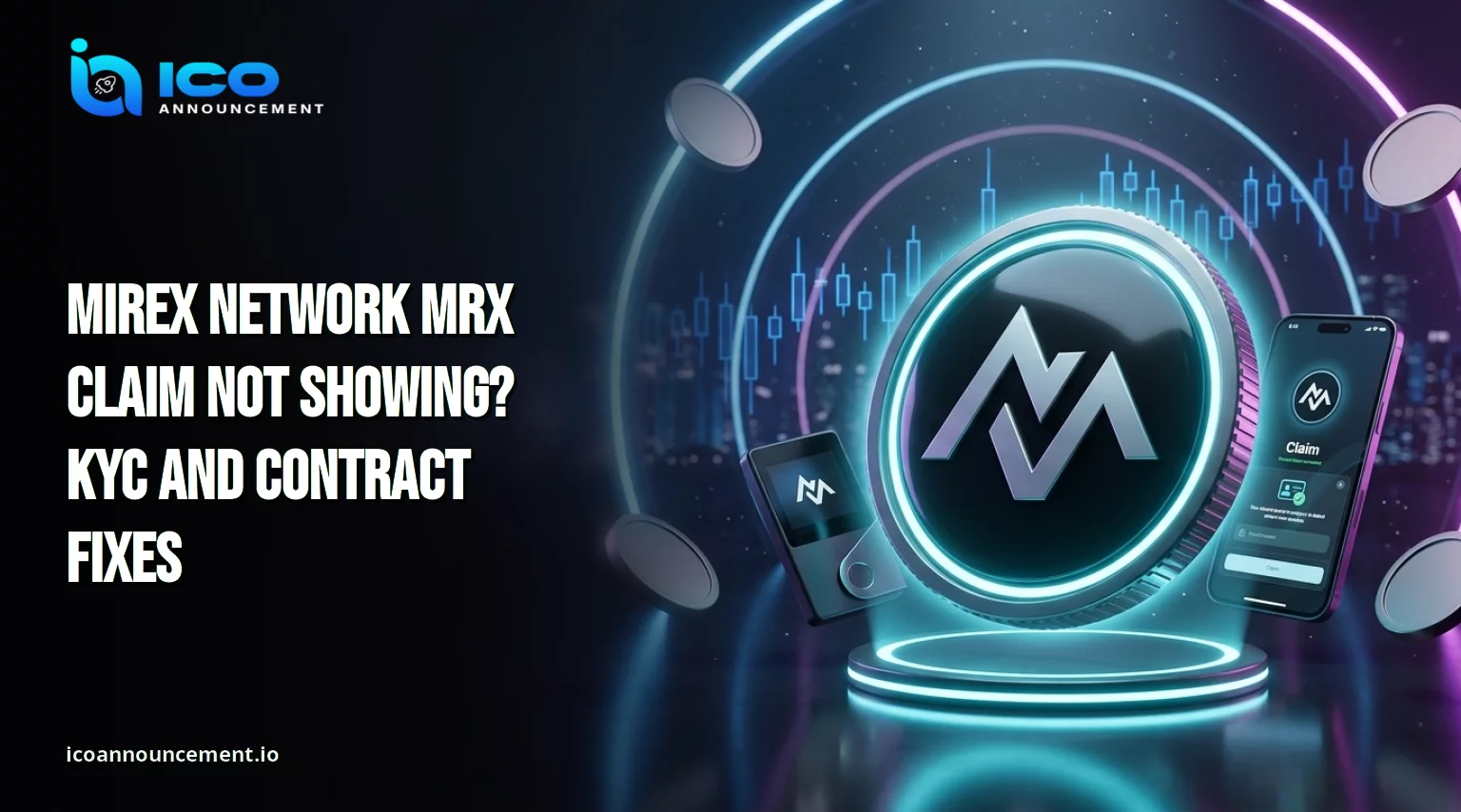
The Mirex Network MRX claim is now the main question for presale buyers. The project’s official channel announced that the claim is live through its Launchpad.
An earlier notice made DigiPort verification mandatory, even for users whose SumSub check was already approved. So when a balance or button is missing, the cause is usually one of three things: unfinished identity verification, the wrong wallet, or confusion between two contract addresses.
This guide separates confirmed instructions from details the project has not explained publicly.
Is the Mirex Network MRX Claim Live Right Now for Presale Buyers?
The official channel said the presale claim is live. Its instructions were simple: open the Launchpad, connect a wallet, go to the Claim section, and collect the tokens. The post also told users to verify the official token contract before interacting.
That confirms the project announced a live flow. It does not prove every account has cleared verification or that every wallet is eligible. Treat your dashboard and transaction hash as the source of truth, not a public post.
For the wider picture of both tokens, read the MRX, Lumira, and RWA guide.
Why DigiPort KYC Can Still Block Your MRX Presale Allocation
An official presale notice said participants must complete DigiPort KYC before claiming tokens. It added that the new check applies even when an earlier SumSub KYC was approved. That is the key detail for anyone whose option is missing.
Do not assume old verification carries over. Open the Launchpad through the project’s published link, check your status, and follow what the dashboard asks for. If review shows as pending, avoid submitting repeated applications unless support asks for one.
The notices reviewed give no universal approval time. Treat any exact processing promise in a group chat as unconfirmed.
How to Claim MRX Through the Official Mirex Launchpad Safely
Follow the flow the project announced, and stop if a page asks for an unexpected approval.
Open the official Mirex Launchpad from the project’s published link.
Connect the wallet linked to your presale participation and check the address.
Check your DigiPort KYC status and finish the verification if it is requested.
Open the Claim section and review the allocation shown for your account.
Read the transaction carefully before signing, then save the transaction hash and check its status on-chain.
At the time of review, the public landing page still showed a “Token Sale is Live” banner with a July 15, 2026, closing date. That wording looks stale, so do not read it as a new presale. Rely on official announcements instead.
MRX Claim Not Showing? Five Wallet and Account Checks to Run First
Work through these in order before trying anything else.
Confirm you connected the wallet used for the presale.
Check whether the dashboard still asks for DigiPort KYC. Pending verification may keep the option hidden.
Refresh the page and reconnect only through the project’s published link.
Look for a pending transaction in your wallet before submitting again.
If you already have a hash, inspect it instead of sending duplicates.
If the app itself will not open, our app account recovery guide covers login problems separately.
MRX Token Contract vs Claim Contract: Which Address Is Which?
The project has published two different BNB Chain addresses. The main MRX token contract is 0xA605D1B98F3F26eed3267BAde68Cb8382136D89e. An earlier launch announcement identified 0x872FaEBb089d510F7C61D21F286e7ED7C89BBFD6 as the dedicated presale claim contract.
They are not interchangeable. The later claiming post asks users to verify the token contract, while the earlier deployment message labels the second address as the claim contract.
Never send tokens to either address by hand. Compare the token address with the BscScan MRX token page before you interact with anything.
Presale Claim vs the 3,000 LUM Airdrop: Why You Must Not Mix Them
A presale claim covers tokens allocated to eligible presale participants. The 3,000 LUM offer belongs to Lumira and needs its own check. Do not connect a wallet or approve anything just because a page uses the Mirex or Lumira name.
Our 3,000 LUM claim guide explains how to verify that offer on its own.
What Mirex Network Has and Has Not Confirmed About Claiming Tokens
The official posts confirm a live flow and mandatory DigiPort verification for presale participants. They do not give a single answer for every account problem. A universal deadline, a standard review time, and a full list of error messages were not stated in the notices reviewed.
Judge your own case by the dashboard and the on-chain record, not by unofficial posts promising a quick fix. For supply and allocation context, see the MRX tokenomics guide.
What to Check Before You Sign Any Token Transaction on Launchpad
Check the site address, connected wallet, displayed allocation, network, and transaction details. Reject any request for a seed phrase, private key, remote-access code, or one-time password. Real support does not need those secrets.
If nothing appears, save a screenshot of the status and contact support through a route published on the official website. Never pay a stranger to unlock tokens, speed up verification, or recover a wallet. Our Mirex app safety review lists more warning signs.
Conclusion: Check Your KYC Status Before Assuming Tokens Are Lost
The project has announced that claiming is live, but DigiPort KYC remains a key step. A missing button does not prove your tokens are lost.
Check the correct wallet, your current KYC status, and any existing transaction before trying the Mirex Network MRX claim again.
Use only the official Launchpad, verify the token contract yourself, and keep presale redemptions separate from Lumira offers. Treat any deadline or reward promise as unconfirmed unless Mirex publishes it directly.
Disclaimer: This article is for information only and is not financial, investment, legal, or tax advice. Crypto transactions can result in irreversible losses. Verify all links and transaction details independently before connecting a wallet or signing.